The Ultimate Control Center: Homepage
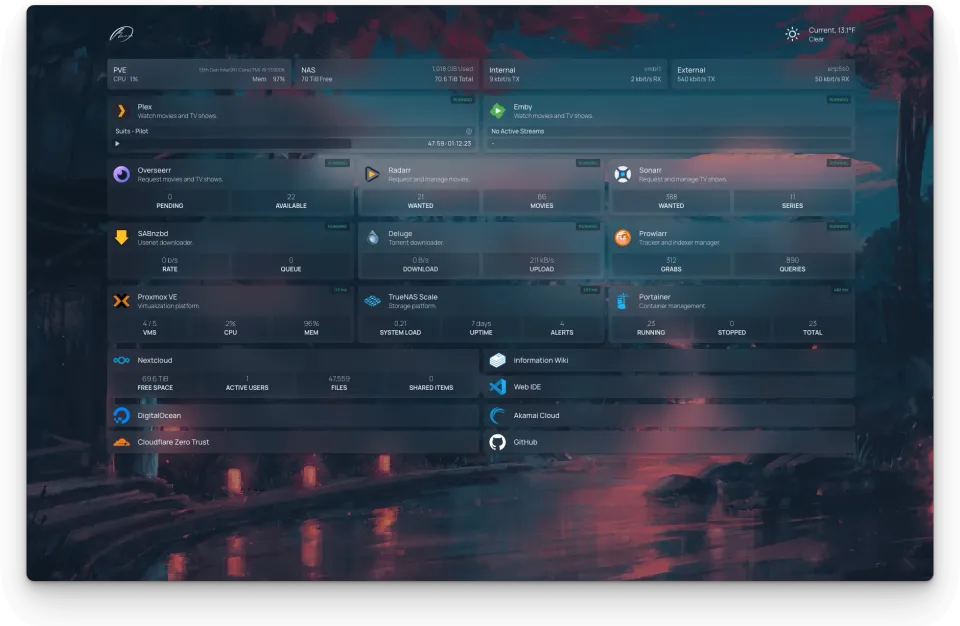
If you’ve dipped your toes into the world of self-hosting, you know the "bookmark fatigue" is real. One minute you're setting up a media server, the next you're hosting a private cloud, a password manager, and a home automation hub. Suddenly, your browser is cluttered with IP addresses like 192.168.1.50:8080 and 192.168.1.50:9000.
Enter the Self-Hosted Homepage. Think of it as the "Mission Control" for your digital life. Instead of hunting through tabs, you have a sleek, unified dashboard that puts every service you own just one click away.
What Exactly is "Homepage"?
While there are many dashboard apps (like Heimdall, Dashy, and Flame), Homepage (gethomepage.dev) has quickly become the gold standard for the "Prosumer" crowd.
It is a modern, fast, and highly customizable application dashboard. Unlike older dashboards that were just a collection of static links, Homepage connects directly to your services via APIs to show you live data.
Key Features at a Glance:
- Service Integrations: Over 100 built-in integrations (Plex, Pi-hole, Proxmox, Tautulli, etc.).
- Docker Discovery: It can automatically "find" your running containers and add them to the dashboard.
- Privacy First: Fully static and secure—your data never leaves your network.
- Sleek UI: Supports custom backgrounds, icons, and "widgets" that show server stats, weather, and more.
Why Go Self-Hosted?
You might wonder, "Why not just use browser bookmarks?" Here is why a dedicated homepage wins:
- Status Monitoring: Most dashboards include a "heartbeat" check. If your media server goes down, you'll see a red dot on your dashboard before you even try to open the app.
- Live Stats: Want to see how much CPU your server is using or how many ads Pi-hole blocked today? You can see that information without logging into five different apps.
- Device Agnostic: Once hosted, your dashboard is available on your phone, tablet, and laptop. No need to sync bookmarks across every device.
- Aesthetic Satisfaction: Let's be honest—seeing a clean, organized grid of your favorite apps looks incredible.
How to Get Started
Setting up Homepage is surprisingly simple if you’re already familiar with Docker. It uses a series of simple YAML files for configuration.
1. Deployment
The easiest way to run it is via Docker Compose. Here’s a basic snippet to get you started:
YAML
services:
  homepage:
    image: ghcr.io/gethomepage/homepage:latest
    container_name: homepage
    ports:
      - 3000:3000
    volumes:
      - /path/to/config:/app/config # Where your settings live
      - /var/run/docker.sock:/var/run/docker.sock # For auto-discovery
2. Configuration
The magic happens in four main files:
services.yaml: Where you list your apps (Plex, Home Assistant, etc.).widgets.yaml: For global info like the weather or system resources.bookmarks.yaml: For external links (GitHub, Reddit, etc.).settings.yaml: For visual tweaks like titles and themes.
Which Dashboard is Right for You?
If you're still undecided, here’s how the big players compare:
| App | Best For... | Config Style |
| Homepage | Information junkies & Homelabbers | YAML (Powerful) |
| Heimdall | Simplicity & Ease of use | GUI (Point & Click) |
| Dashy | Maximum Customization | YAML/GUI (Feature Rich) |
| Flame | Minimalists | GUI (Clean & Simple) |
Check out my dash here: https://home.workhardbekind.com/